
Our Recommended Tools
Here are some of the recommended tools and services we rely on at EasySOP.
- EasySOP Tools
- Paid AI service
- OpenAI ChatGPT
- Google Gemini
- Anthropic Claude
- Something to save outputs to:
- Google Docs, Sheets, Slides
- MS Word, Excel, Powerpoint
- Text editor like Notepad (Win), Notepad++ (Win), TextEdit (Mac), BBEdit (Mac)
- Place to keep all the files
- Google Drive
- OneDrive
- Your computer
- Canva for image editing and creation
- Descript for creating and editing videos
- Google Search Console
Why we use Markdown and JSON at EasySOP
For a lot of the prompt outputs, copying and pasting (or exporting) the content to Google Docs (one click from Google Gemini) or Word is the best thing. When you’re working with blog posts, newsletters, emails, or social media posts, it’s easier to work with and edit your content in Docs or Word. However you will notice that most of the prompts your copy and paste from here have a lot of “#,” “*,” and “-” in them. That’s because the content is structured in Markdown.
What is Markdown?
Markdown is a simple way to mark up simple text files so they can be formatted with headings, bold, italics, links, etc. It’s been around for over 20 years and is one of the best ways to “format” text so it can be exported in virtually any way possible. Because Markdown is simple to use, easy for humans to read, and well understood by machines, it has become one of the core formats for AI—even if you don’t ever see it. All Google Gemini outputs, for example, are actually in Markdown behind the scenes. That’s what you’d see if you use the copy button in Gemini and paste the content somewhere.
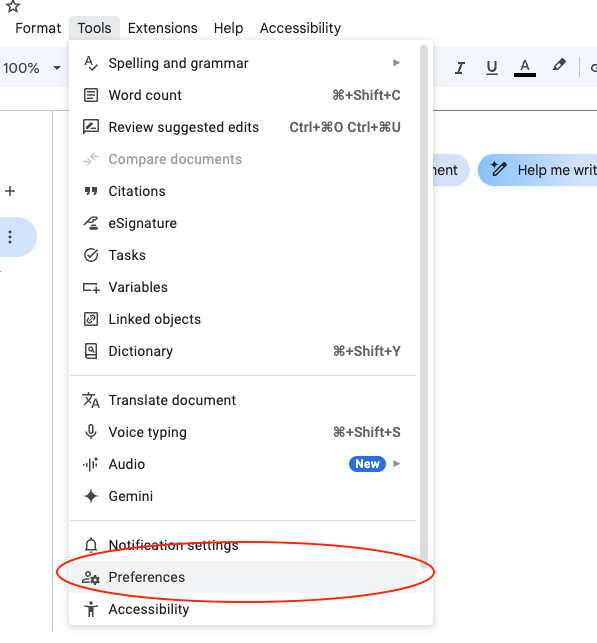
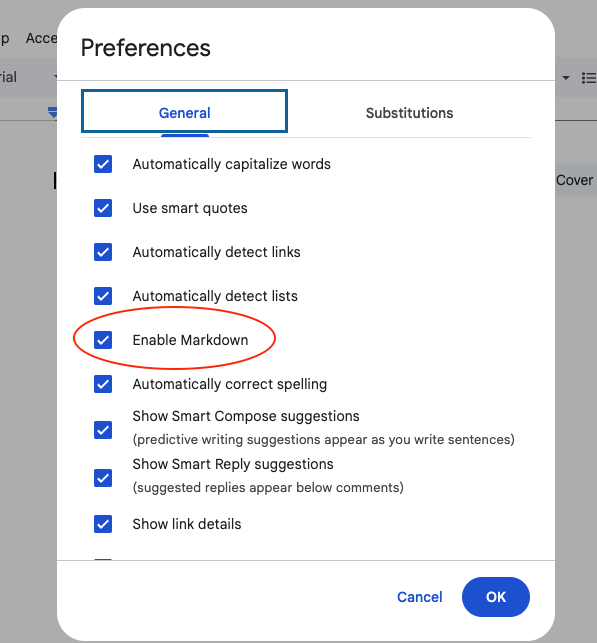
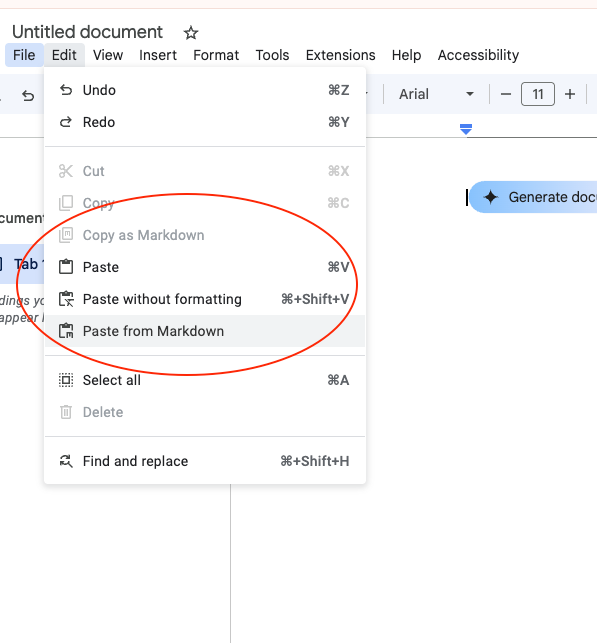
We provide our prompts—when possible—in Markdown so we know the detailed and complex instructions will be understood by all AI systems flawlessly. Markdown is the AI lingua franca for both input and output. All you need to use and read Markdown is a basic text editor (Notepad, Notepad++, TextEdit, BBEdit)—because they are just text files. You can also open them in Word or Docs, but those apps might not “translate” the Markdown into formatted text. The file suffix for Markdown is “.md” and you will see some files shared here with that suffix. If you use Google Docs, you can enable Markdown support by going to the Tools Menu → Preferences → Check “Enable Markdown” → Click Okay. On the Edit menu you’ll now see “Copy as Markdown” and “Paste as Markdown” options. When you use the copy button in any AI tool and want to paste into Google Docs, choose “Paste as Markdown” and what appears in the document will be nicely formatted.
What is JSON?
JSON (pronounced “jay – sawn”) is also a text-based format, but it’s more like HTML than Markdown. It’s used extensively in web development for storing, reading, and exchanging data—which then makes it something that AI tools all recognize. A typical JSON entry might look like this:
{
  "firstName": "John",
  "lastName": "Doe",
  "age": 30,
  "isStudent": false,
  "address": {
    "street": "123 Main St",
    "city": "Anytown",
    "country": "USA"
  },
  "hobbies": [
    "coding",
    "reading",
    "hiking"
  ],
  "email": null
}
From the example you can see that John Doe lives on Main St and likes coding, reading, and hiking. Why do we use it?
AI tools can be bad at reading in data from spreadsheets accurately, and worse at writing it.
Sometimes when you upload a CSV file, and less often with Google Sheets or Excel, the AI doesn’t read the data in correctly. The only way to know if the data is correct is to ask the AI to summarize or present the data to you. Having an AI tool output data in a table and be equally frustrating. Copying and pasting what should be comma or tab delimitated data into a spreadsheet can result in a mess with all the data in the first cell on each row.
Using JSON for input and output avoids some of these issues, but not all. We still often want data in tables, so there are ways to try to “convince” an AI to give us a table when we want a table. The prompts we’ve written try to make sure data can be copied and pasted into a spreadsheet with the least amount of fixing needed.
But sometimes we use JSON as the vehicle to make sure we get good data out so for another step we can get good data in. A prime example of this is the prompt for brainstorming content.
We want to have data you can copy and paste into a spreadsheet to track ideas, but we also want you to be able to load all the ideas back into the next prompt to create the content.
The brainstorming prompt gives you your ideas in both a format for spreadsheets and in JSON. You save the JSON so you can then give it to the content creation prompt and we know all your ideas will be read correctly.